
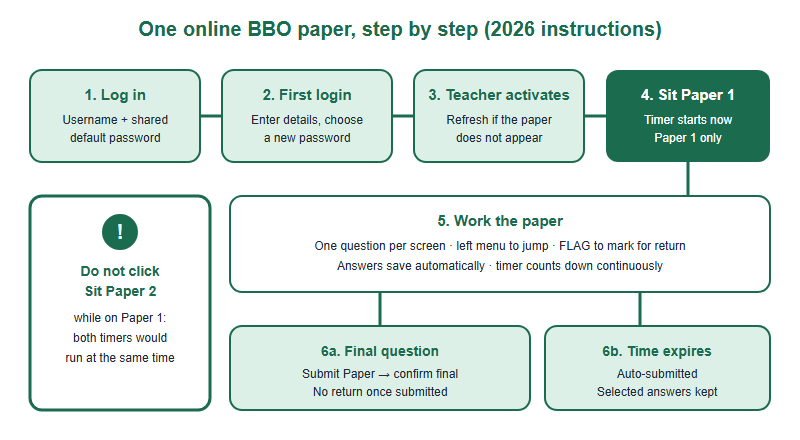
If your school sits the British Biology Olympiad online, the paper does not look like the PDF past papers you practise on. According to UKBC's instructions for the 2026 competition, questions appear one at a time, a side menu lets you jump and flag, answers save automatically, the paper submits itself when time runs out — and clicking “Sit Paper 2” too early starts both timers at once.
Where these details come from, and which sitting they cover
Everything in this walkthrough is drawn from the document UKBC publishes for schools, titled British Biology Olympiad 2026 — Instructions for Teachers, including the page headed “Instructions you can share with students”. It is the most recent edition available at the time of writing. The 2027 edition may change details, so treat this as a description of how the online paper worked last season and check the current version once your school registers. UKBC states that registration for the 2027 season opens on 1 October.
Two scope notes before the mechanics:
- This is the online route. UKBC describes the BBO as two 45-minute multiple-choice papers taken online, on site at the registered school, invigilated in person. If your school enters directly with UKBC, this is your exam.
- The China-region listing is different. The regional partner lists its 2027 China-region sitting as Saturday 16 January 2027, 10:00–11:30, and describes it as paper-based at a partnering school. If that is your route, the portal mechanics below will not apply on the day; the materials and technique points still deserve a question to your centre. Our guide to the China-region BBO exam was written for the 2026 sitting and describes an online paper, so confirm the 2027 arrangements with your centre.
What UKBC's instructions actually say
Read as a student, the teacher document contains ten rules that change how you should behave in the room. Here they are side by side with what each one means for you.
| What the 2026 instructions state | What it means for your technique |
|---|---|
| Students need “scrap paper, a pen/pencil and something capable of basic calculations”; the student sheet says “a basic calculator” | Practise with a simple calculator, not a graphing model or a phone. Scrap paper is your only space for working, sketches and notes. |
| A device with continuous internet connection; “A laptop is recommended. Mobile devices and tablets are compatible but not advised.” | Rehearse data-heavy questions on a laptop-sized screen. A graph read on a tablet is a different task from a graph on paper. |
| You log in with a username and a default password shared across your school, then must enter your personal details and choose a new password | If your papers are on separate occasions, you need that new password again. Write it down somewhere your invigilator allows. |
| “Questions are shown one at a time”; you move with a button or “select any question using the menu on the left” | You cannot scan the whole paper at a glance. The menu is your overview, so learn to use it before the first question. |
| A FLAG option marks a question in the menu and can be removed at any time | The flag records that you want to return, not why. Your reasons have to live on scrap paper. |
| “Your answers are saved automatically as you work” | An answer you have selected is recorded as you go; you do not need a final save. |
| The option to submit appears when you reach the final question, and you must confirm your answers are final | Reaching the last question is not the end of the paper. Check your flags before you confirm. |
| If time runs out, the system submits automatically and “You will not lose answers”; once submitted, you cannot return | Anything selected when the clock hits zero is submitted. Nothing can be added afterwards. |
| “DO NOT click on Sit Paper 2 as the timer will start for both papers at the same time” | One stray click can run your second paper's clock while you are still on the first. Do not touch it until told. |
| Extra time for students entitled to it in public exams is added per 45-minute paper, for example 12 minutes for 25% | If you have an approved arrangement, confirm early that your school has entered it; it appears in your on-screen timer. |
One question per screen changes how a first pass works
Most pacing advice, including our own, assumes you can see the paper: skim for easy marks, bank them, come back for the hard ones. On a printed past paper that is a glance down the page. On a screen that shows a single question, a first pass means clicking through every item, and a long data question costs the same clicks as a one-line recall item.
That does not make the three-pass idea wrong. It changes the mechanics. Three adjustments do most of the work:
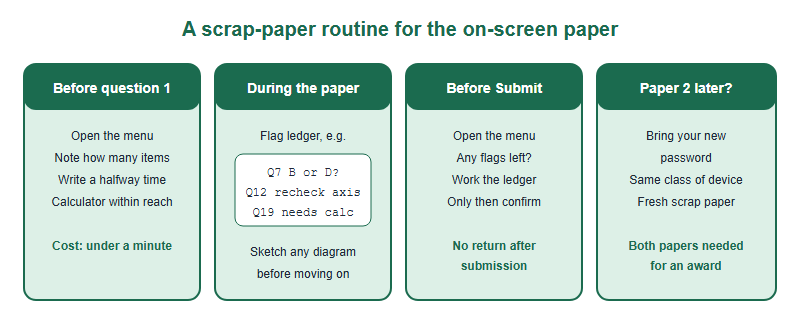
- Use the menu before question one. In the first few seconds, look at the left-hand menu. Whatever the paper contains, you now know how many items stand between you and the Submit button, and you can set a halfway checkpoint on your timer before you read a single stem.
- Keep a flag ledger on scrap paper. The on-screen flag says “come back”. It does not say “I had it narrowed to B or D”, or “needs the calculator”, or “reread the graph axis”. Write the question number and five words beside it. When you return with eight minutes left, you resume where you stopped instead of starting the question again.
- Sketch before you scroll. Diagrams, pathways and pedigrees do not stay on screen when you move on. If a question needs a structure held in mind, put a rough sketch on scrap paper the first time you see it.
A related habit: decide in advance what you will do with a question you cannot finish. The UKBC page does not state whether wrong answers are penalised, so confirm that rule with your centre before you decide. If your centre confirms there is no deduction, selecting your best current answer before you flag means the automatic submission at zero still records something. If it is not confirmed, leave the choice to your centre's guidance rather than to our assumption.
The two traps that cost marks without any biology
The Paper 2 button. The instructions are unusually direct here, with the warning set in capitals: clicking Sit Paper 2 while Paper 1 is open starts the timer for both papers at the same time. UKBC also advises teachers to leave Paper 2 inactive until students need it, which is protection, but not a reason to relax. Nothing about the button changes your mark on Paper 1 — it quietly spends minutes you will want later.
The Submit button at the last question. Submission is offered when you reach the final item and, once confirmed, the paper is closed to you. Under time pressure it is easy to arrive at the last question, answer it, and confirm out of momentum while three flags are still waiting in the menu. Make it a rule: before confirming, open the menu and look for flags. If any remain, go back.
These matter more than they look because of a rule on the UKBC page itself: students must complete both papers to be considered for an award category. The two-paper structure means every procedural slip happens twice, and a problem with the second paper cannot be offset by the first.
Rehearsing screen conditions with paper past papers
You will almost certainly prepare on printed or PDF papers, which show a full page of questions. That is fine for learning the biology and a poor rehearsal of the format. From November, convert some practice into screen conditions:
- Cover the rest of the page. Work a past paper with a sheet of card over everything except the current question. It feels artificial, and that is the point: you stop reading ahead.
- Work on the device you will use. Put a practice set on a laptop at normal zoom, one question per view. Data questions read differently on a screen.
- Time the 45-minute unit and use a basic calculator. The instructions set 45 minutes per paper and list a basic calculator. Match both, so the clock in your head fits the clock on the screen.
- Keep the ledger every time. A flag ledger you only use on the real day will not exist under pressure. Five practice papers is enough to make it automatic.
Our gathered past-paper pack includes worked solutions for some years; coverage varies by year, so plan on reasoning through the rest yourself. The wider sequence for turning those papers into marks is in our guide to preparing for the BBO.
After the paper: certificates, names and what to check
The same document says results and e-certificates become available after the organisers have verified them once the competition is over, “usually within a week”, and it asks teachers to check student details for certificates. Two practical consequences follow.
First, the personal details you type at your first login are the details your teacher checks for certificates. Use your name exactly as it appears on your school records and your application documents — the same romanisation and the same order — rather than a nickname. An admissions reader cross-checks an award against your transcript, your activity list and your statement; a certificate that plainly matches the rest of the file is one less question for them to ask.
Second, confirm your year group entry is right. UKBC lists eligibility by year group — Y12/Y13 in England and Wales and equivalent year groups elsewhere — and the 2026 teacher guidance adds that eligible students are aged 18 or younger and in pre-university education. If you are unsure how your grade maps, settle it with your teacher before the day. If you are also planning a spring olympiad, a January result read against your own flag ledger is the starting point for the BBO-then-USABO plan.
Can I use a calculator in the BBO?
UKBC's 2026 instructions list scrap paper, a pen or pencil and a basic calculator. Confirm the 2027 edition with your school.
Can I go back to an earlier question in the online BBO paper?
Within a paper, yes: the menu lets you select any question and FLAG marks it. Once a paper is submitted, you cannot return.
What happens if the BBO timer runs out?
Per UKBC's 2026 student instructions, the paper submits automatically and answers already selected are not lost.
When do BBO results and certificates arrive?
The 2026 instructions say results and e-certificates follow verification once the competition is over, usually within a week.
This is an independent guide operated by Hanlin Education for China-based international-school students. We are not affiliated with, endorsed by, or sponsored by UKBC or the Royal Society of Biology; official administration of the British Biology Olympiad rests with the organiser. Platform behaviour, permitted materials, delivery method and timing are described here from UKBC's 2026 instructions and may change for the 2027 competition — confirm current details on the UKBC official pages and with your own school or exam centre. Errors reported to us are corrected within 7 working days.